Add AI Model
After connecting an AI provider (like OpenAI, Anthropic, or DeepSeek), the next step is to add models for that provider.
Models define which specific AI engine (e.g., GPT-4, GPT-5, GPT-5.6, Claude-4.6, Claude 4.8 etc.) your agents will use when processing chats or API calls.
⚙️ View Your Connected AIs
Go to Business → Connected AIs
🔗 https://ainisa.com/business/aisYou’ll see your added providers listed like this:
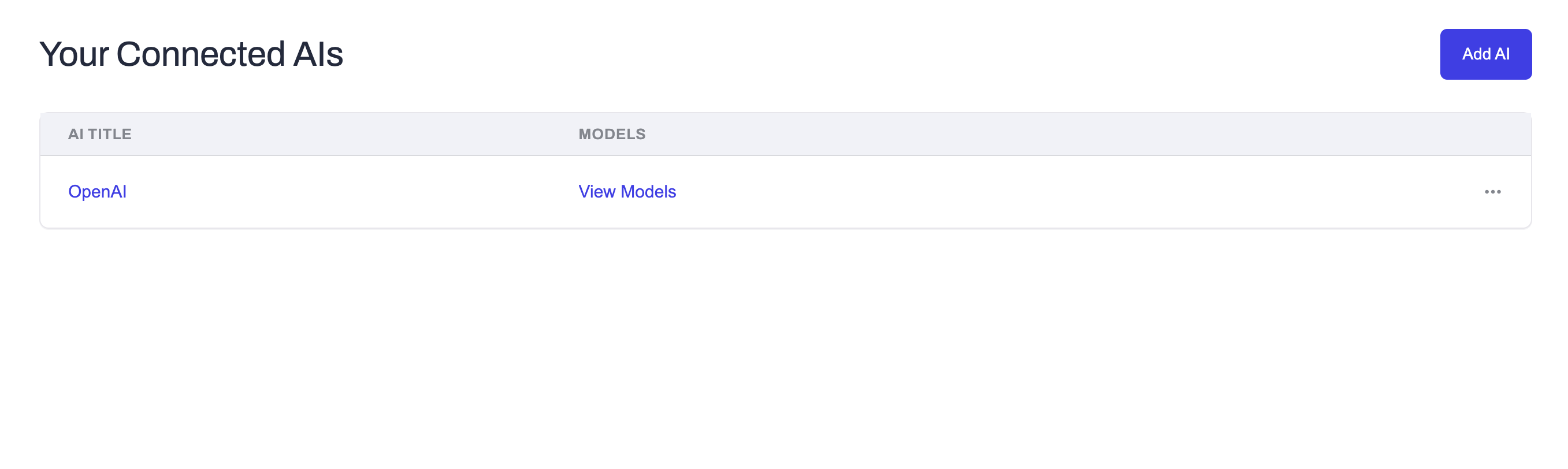
Click View Models next to your provider — this opens the AI Models page for that specific provider.
🧠 View Models
The View Models page displays all AI models you’ve added for that provider.
You can add multiple models from the same provider (for example, gpt-5, gpt-5-mini, gpt-5.6, etc.).
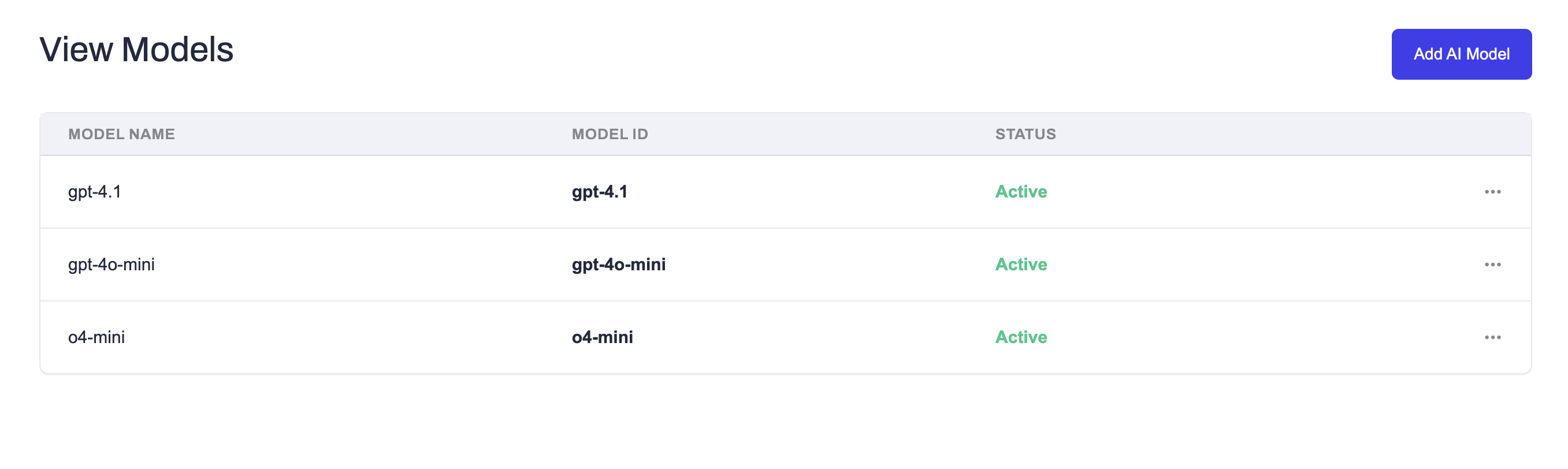
Each model entry shows:
- Model Name – the name you gave it
- Model ID – the provider’s official model identifier
- Status – Active / Disabled
➕ Add a New Model
To add a new model:
Click Add AI Model
The Add AI Model page will open.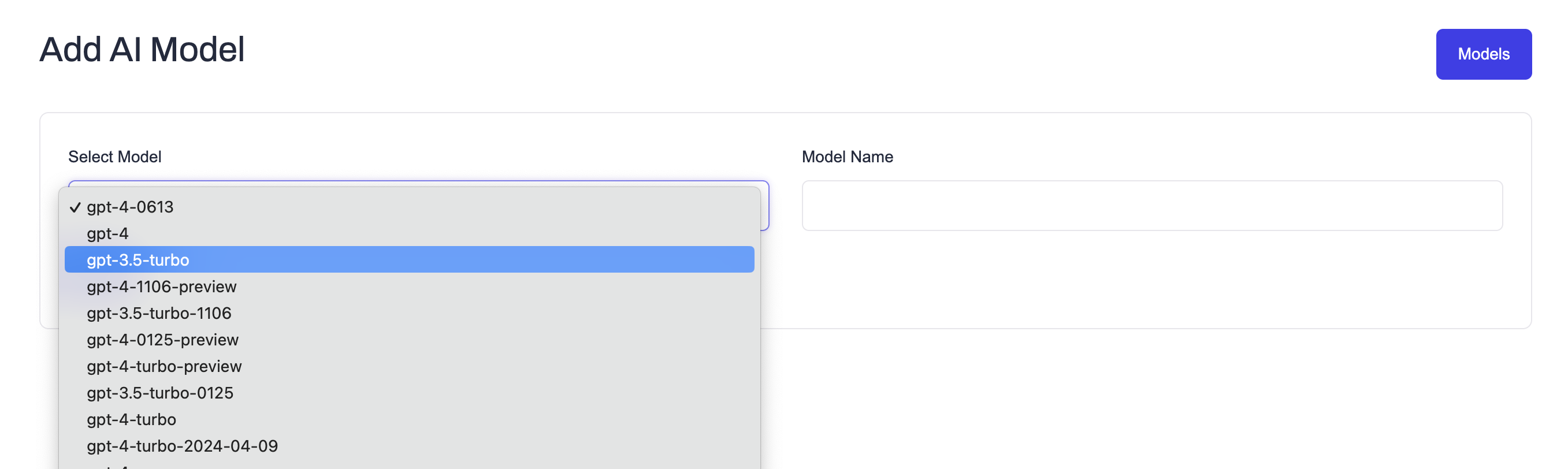
Fill in the form fields:
- Select Model: Choose a model from the dropdown list.
Only models supported by the selected provider are shown.
Example options:gpt-5,gpt-5-mini,gpt-5.6 - Model Name (optional): Give your model a custom name if you want (for example, “Customer Support GPT-5”).
If you leave it blank, Ainisa will use the default provider name automatically.
- Select Model: Choose a model from the dropdown list.
Click Save
The model will be verified and added to your list with Active status.
🧩 Example Configuration
| Field | Example Value | Notes |
|---|---|---|
| Select Model | gpt-5 | Choose from available models for the provider |
| Model Name | GPT-5.6 | Optional custom name |
| Status | Active | Automatically set after successful verification |
✅ Summary
| Step | Action | Description |
|---|---|---|
| 1 | View Connected AIs | Go to Business → Connected AIs and choose a provider |
| 2 | Open Models Page | Click View Models to manage or add new models |
| 3 | Add AI Model | Select a model from the dropdown and optionally give it a custom name |
| 4 | Activate | Model will be saved and activated automatically |
💡 Notes
- You can add multiple models for each provider.
- Models that are disabled or deleted won’t appear in the assistant creation list.
- Ainisa automatically validates the selected model with the provider before activation.
- Model names can help you easily distinguish roles (e.g., “GPT-5 (Fast)”, “Claude-4.8 (Creative)”).