💬 WhatsApp Integration
The WhatsApp Integration allows your AI Assistant to communicate with users directly through WhatsApp.
Ainisa uses the Meta Cloud API to securely connect your WhatsApp Business account.
⚠️ Before You Start
Before connecting WhatsApp to Ainisa, please review the following requirements.
1. Using an Existing WhatsApp Business App Number
If your phone number is already registered in the WhatsApp Business App, you can connect it to Ainisa using WhatsApp Coexistence.
- You do not need to delete your WhatsApp Business account.
- You can continue using the WhatsApp Business App on your phone.
- Ainisa can work alongside your WhatsApp Business App to automate customer conversations.
- Make sure your WhatsApp Business App is updated to the latest version.
2. Connecting a New Number
If you want to connect a phone number directly to the WhatsApp Business Platform without Coexistence:
- Use a number that is not currently registered in WhatsApp or the WhatsApp Business App.
- If the number is already registered in a WhatsApp app, you may need to remove that registration before proceeding.
Important: If you want to keep using your existing WhatsApp Business App, choose the Coexistence connection option instead of deleting your account.
3. Existing WhatsApp Business Platform Numbers
If your phone number is already connected to the WhatsApp Business Platform through another provider, additional migration or account-sharing steps may be required.
Depending on the connection method, you may need to disable Two-Step Verification (2FA) before migration.
You can manage this in:
Meta Business Manager → WhatsApp Manager → Phone Numbers → Two-step verification
Only disable 2FA when required for the migration process. Do not disable it unnecessarily.
🔧 Create a WhatsApp Integration
Go to your Business Dashboard → Integrations
👉 https://ainisa.com/business/integrations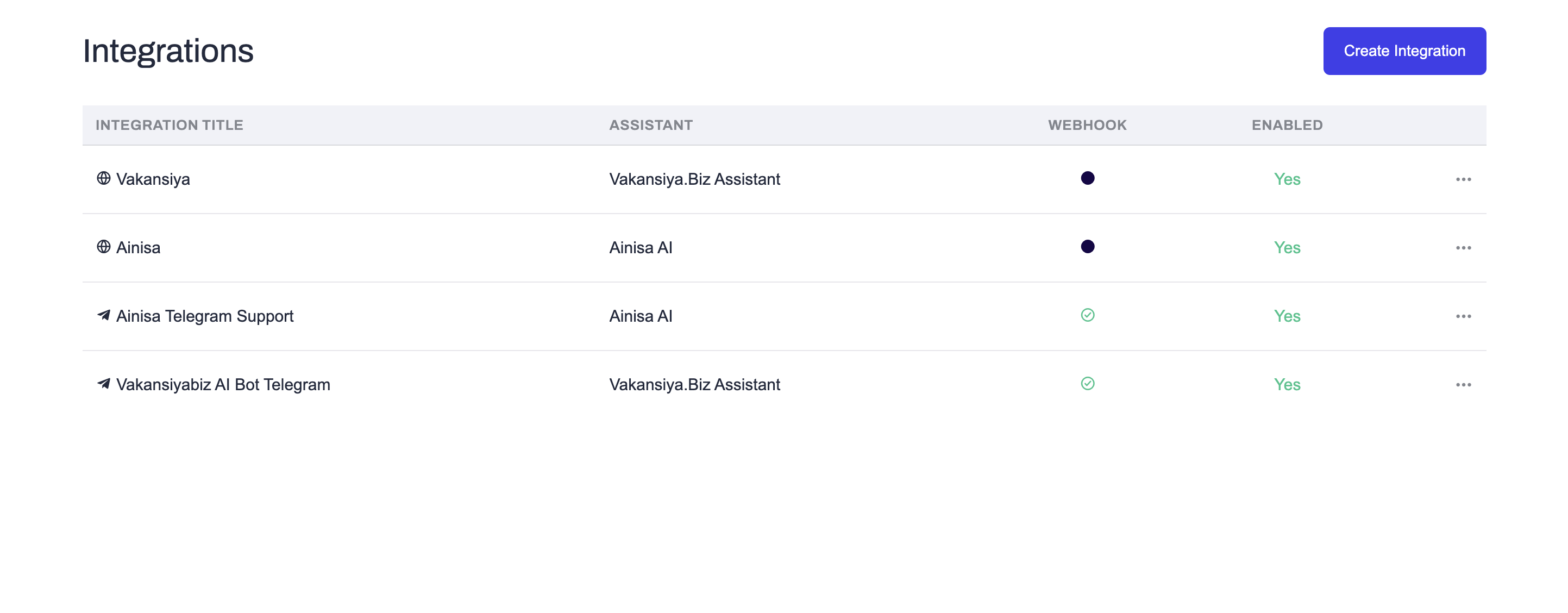
Click Create Integration
Choose WhatsApp from the list.
In the opened page, fill the following fields:
Field Description Integration Title A name for your integration (e.g., “Customer Support WhatsApp”). Assistant Select your AI Assistant that will handle conversations. API Key Select your API key for authorization. 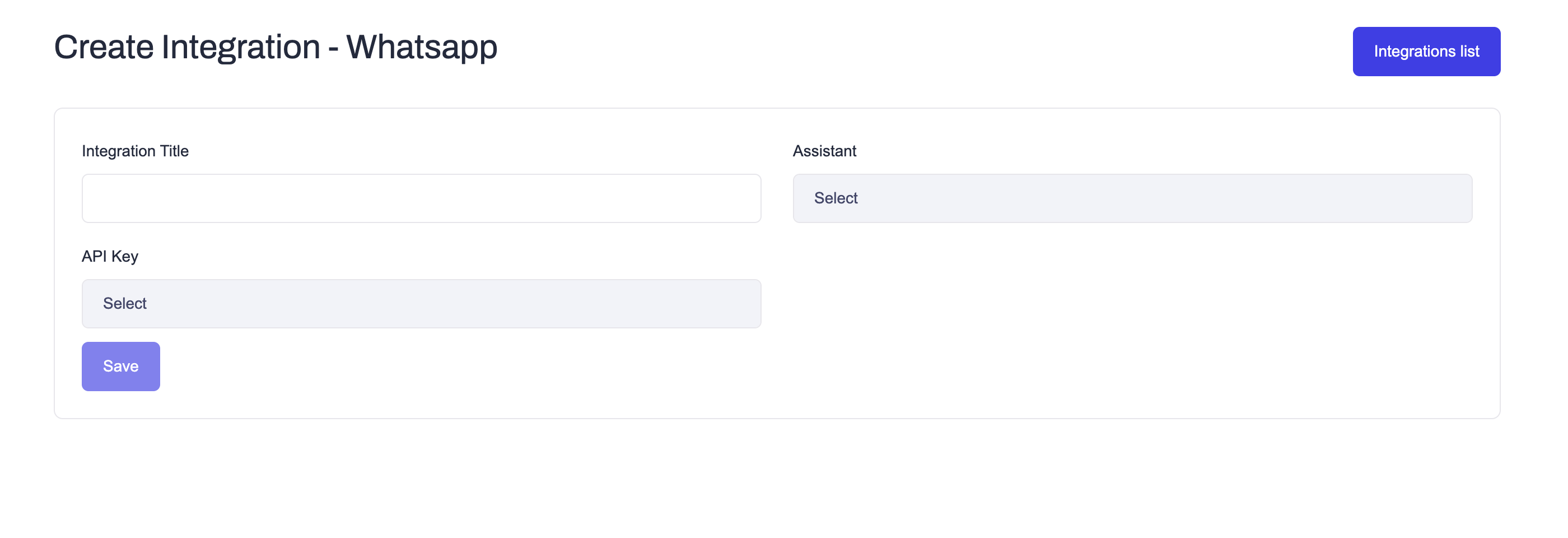
Click Connect.
This will open a new page hosted by Meta (Facebook) where you’ll complete the connection.
🔗 Meta Onboarding Flow
Once redirected to Meta, follow these steps carefully.
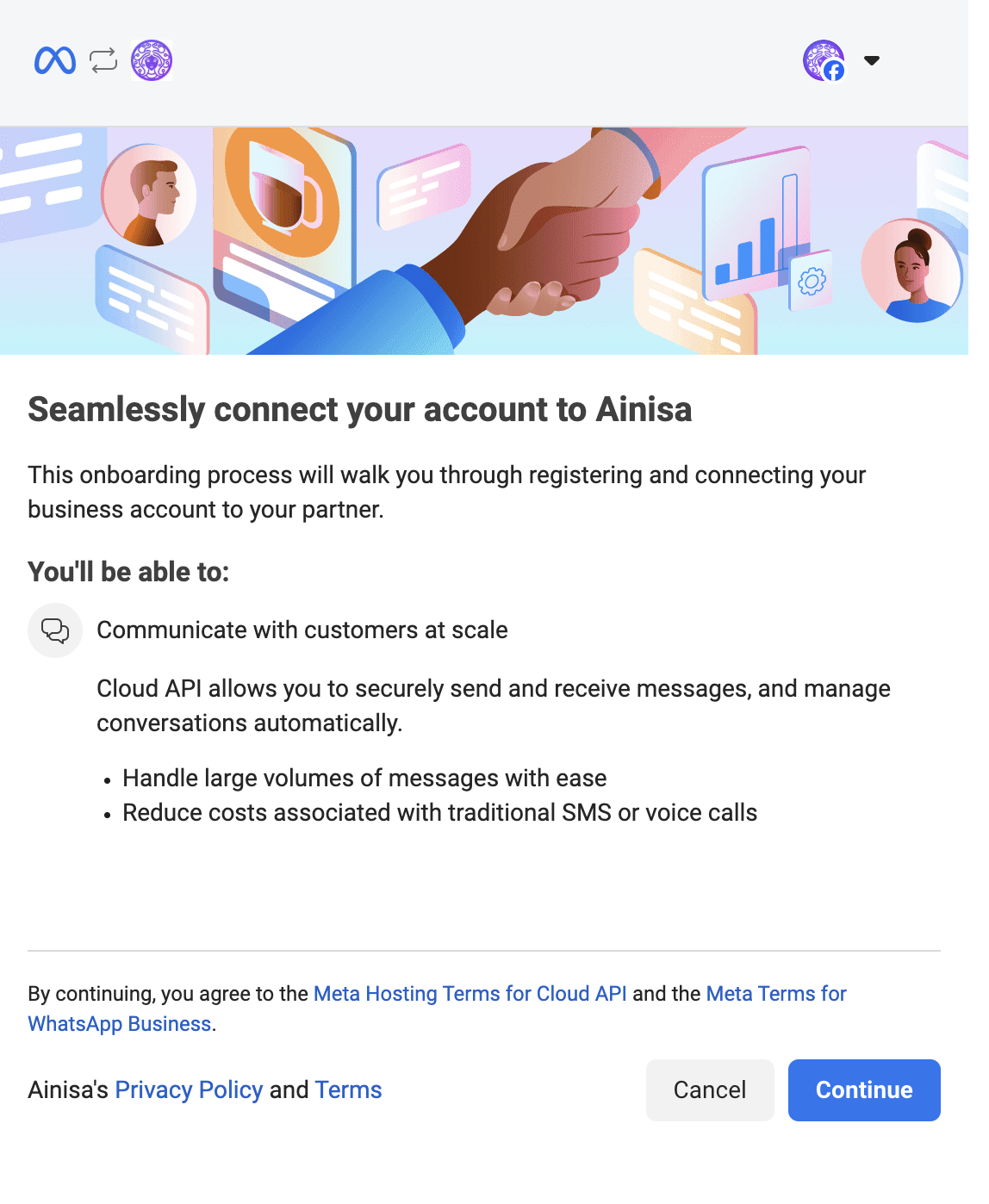
1. Connect your account to Ainisa
You’ll see a page like this. Click Continue to start onboarding.
2. Select or create a Meta Business Account
If you already have a business account, select it.
Otherwise, create a new one.
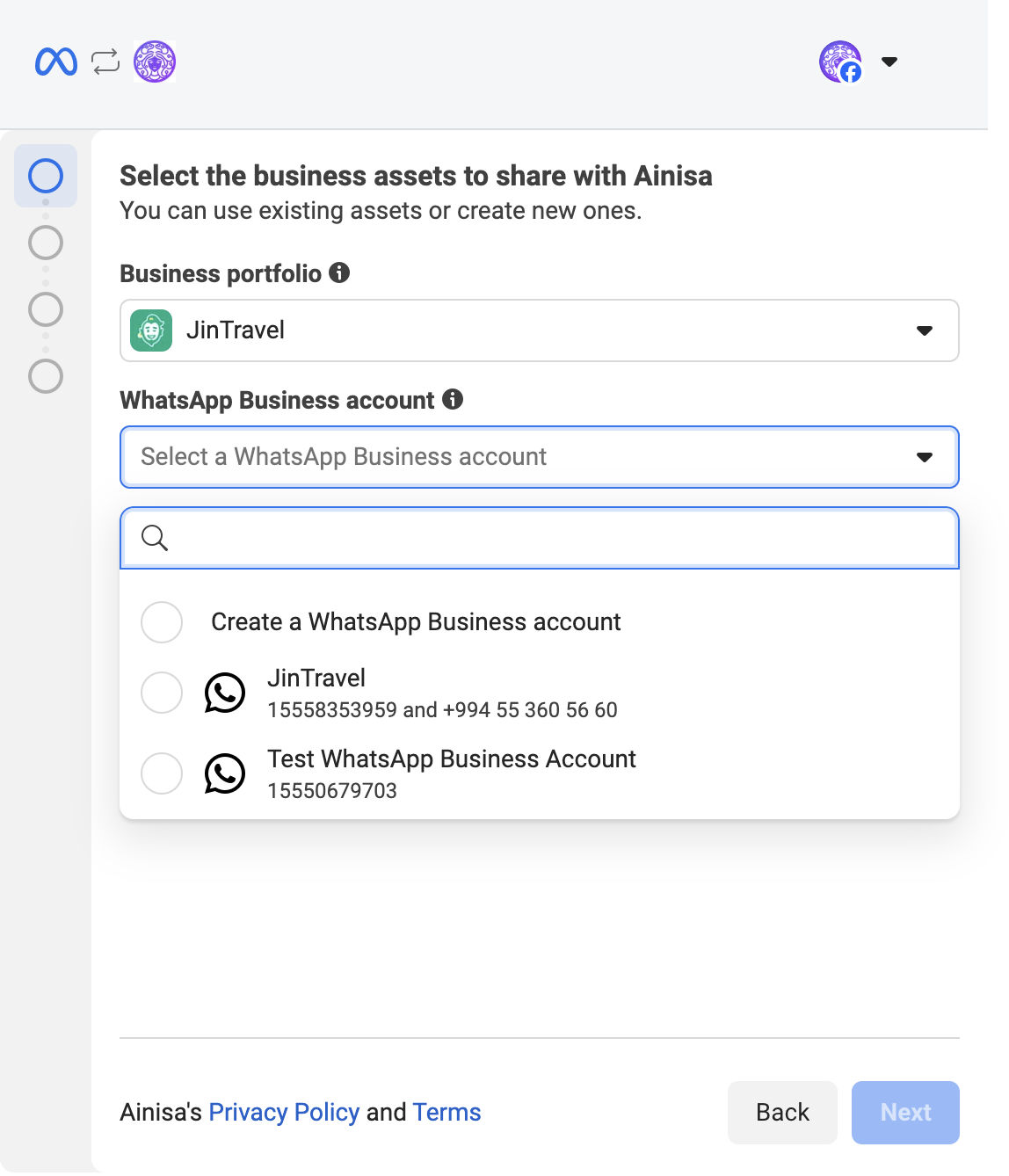
3. Select or create a WhatsApp Business Account
In the next step, choose your existing WhatsApp Business Account.
If you don’t have one, create it.
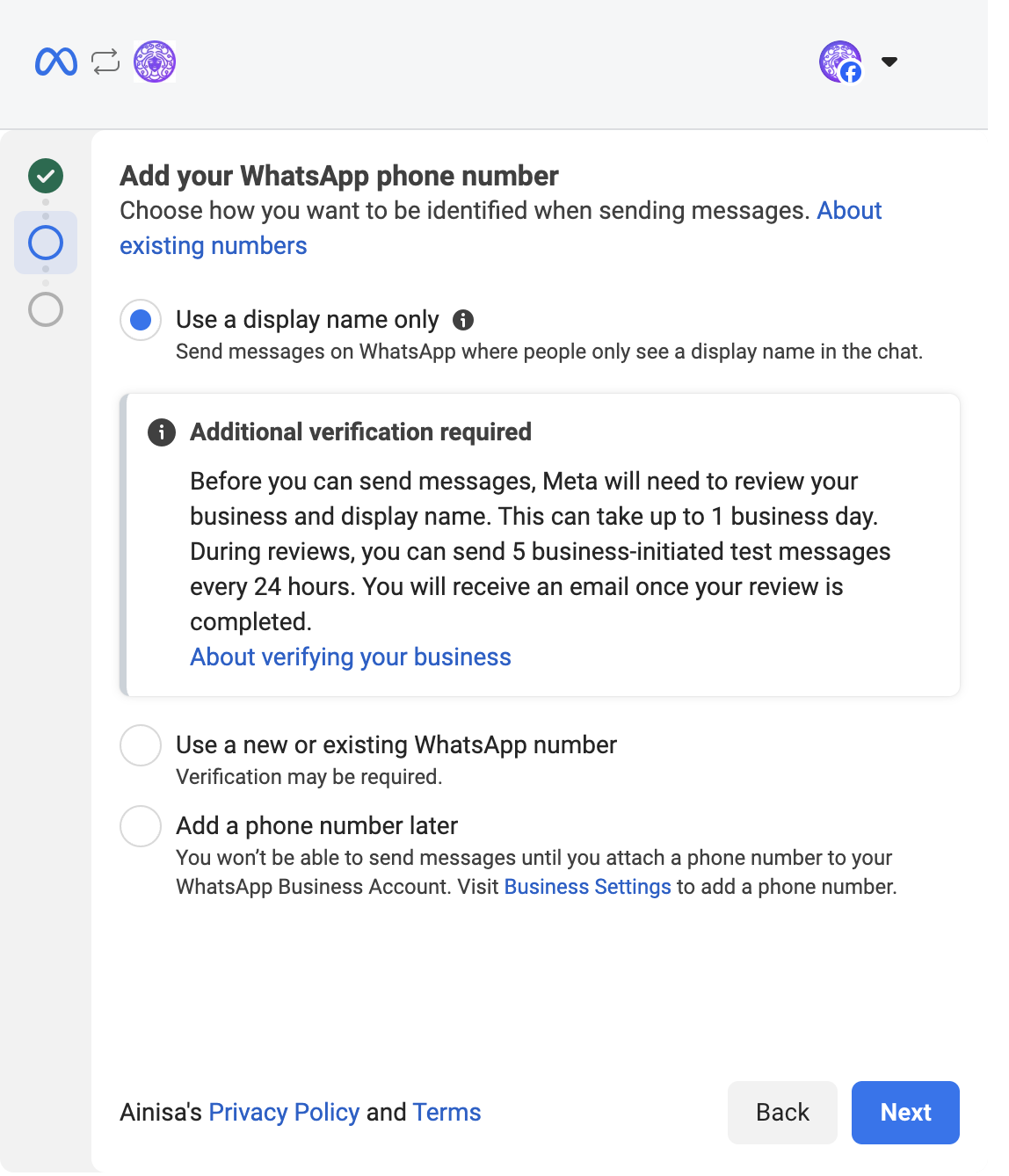
4. Select or add your WhatsApp phone number
Choose the phone number you want to use.
If no number exists, create a new one and verify it via SMS or phone call.
5. Review and confirm access
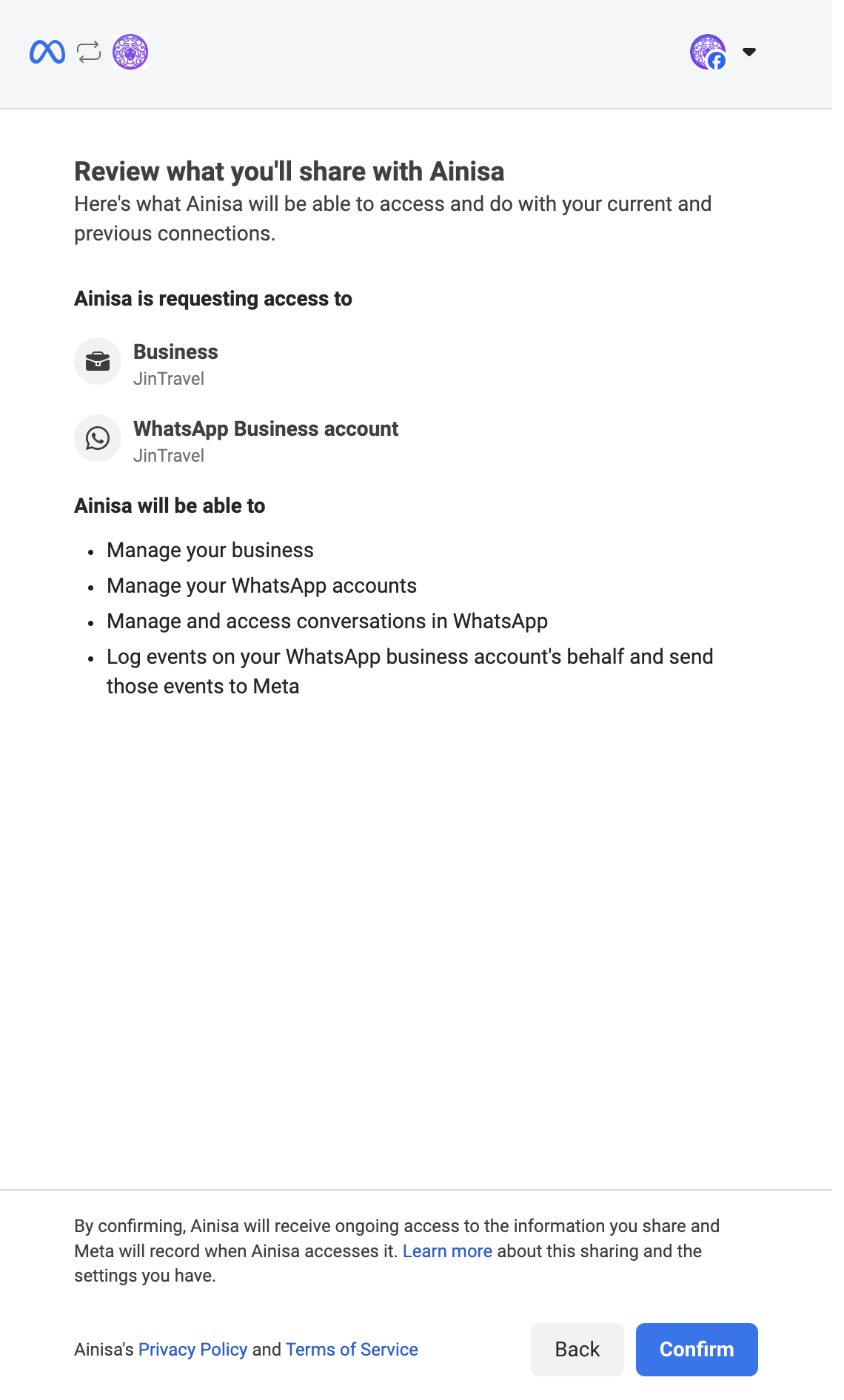
Finally, Meta will ask you to confirm the access Ainisa will have.
Click Confirm to continue.
6. Finish the setup
After you confirm, click Finish.
You’ll be redirected back to the Ainisa Integrations page, and the WhatsApp number will be automatically added to your account.
📱 Handling WhatsApp Numbers Already in Meta Business
If you selected a phone number that is already connected in your Meta WhatsApp Business Account or 2 step verification is enabled for your whatsapp business account, you may see one of two situations:
1. Number is in “Pending” status
- The number must be verified using a 6-digit PIN code.
- After Ainisa adds the number, you’ll be redirected to a page where you must:
- Enter the 6-digit PIN code
- Click Register Phone
- After this, your number will show VERIFIED and CONNECTED status in your Meta Whatsapp Business Account.
📝 Note: Ainisa does not store your PIN code. Save it somewhere safe.
2. Number is “Verified” but not “Connected” (e.g., DISCONNECTED)
- You’ll still be redirected to the Register Phone page.
- Enter the same PIN code you used when registering this number in Meta Business.
- If you don’t remember the PIN:
- Go to Meta Business → WhatsApp → Your Number → Two-step verification tab
- Either disable 2FA, or change the PIN.
- Then enter the new PIN on Ainisa and click Register Phone.
Once done, your WhatsApp integration will be connected.
✅ Connection Completed
After finishing all steps:
- You’ll see your WhatsApp integration listed in Ainisa.
- The Webhook and Enabled columns will show green check marks.
- Your customers can now send messages to your WhatsApp Business number, and Ainisa will automatically reply through your AI Assistant.
🔒 Notes
- Make sure you use a phone number not connected to any active WhatsApp App.
- Disable 2FA before integration to avoid verification errors.
- If you change your Meta account’s password or security settings later, you may need to reconnect the integration.
- After your integration is active you can send 1000 free messages monthly. Make sure to add a payment method on your Meta billing settings to be able to send more than 1000 messages per month.